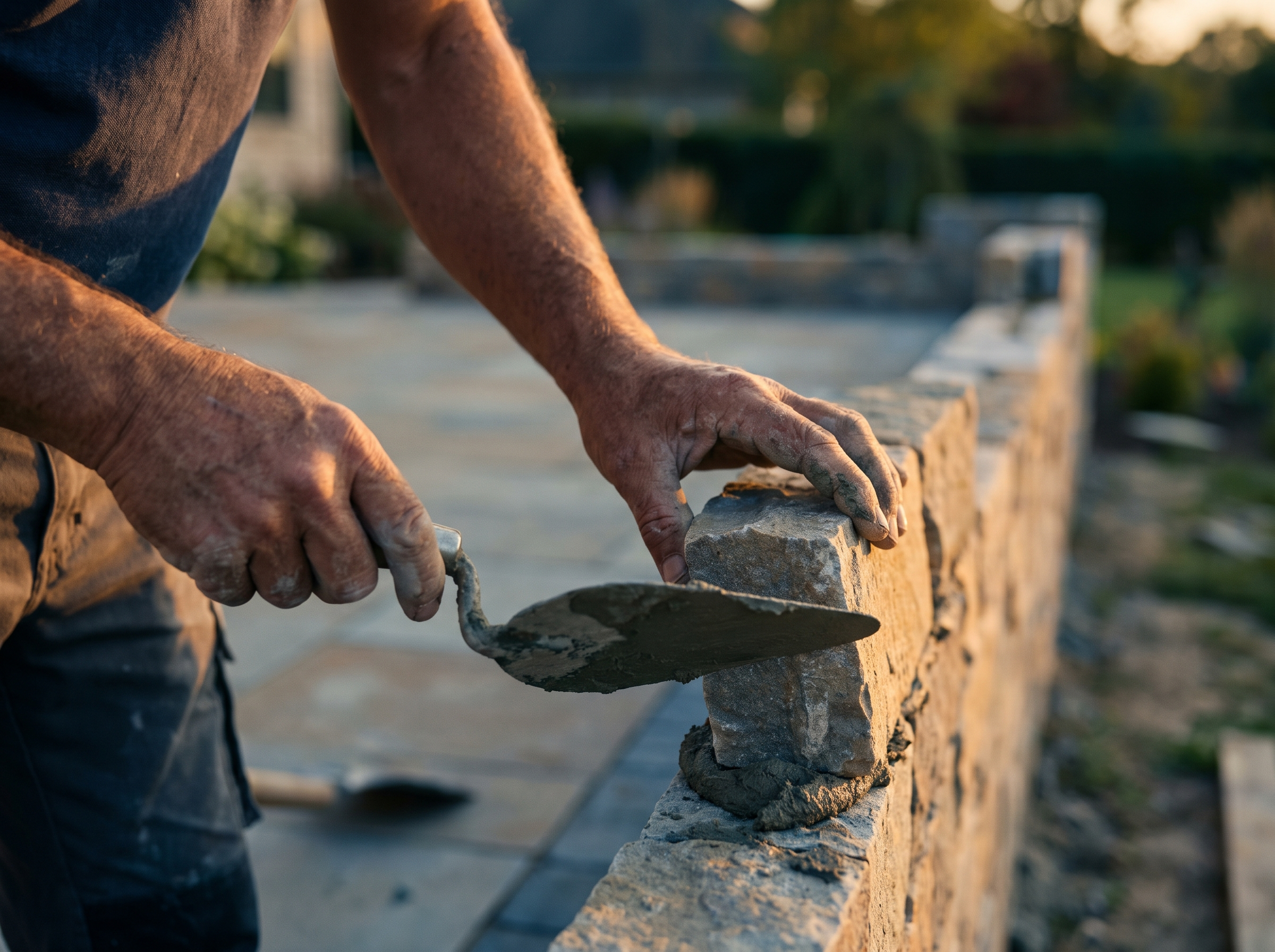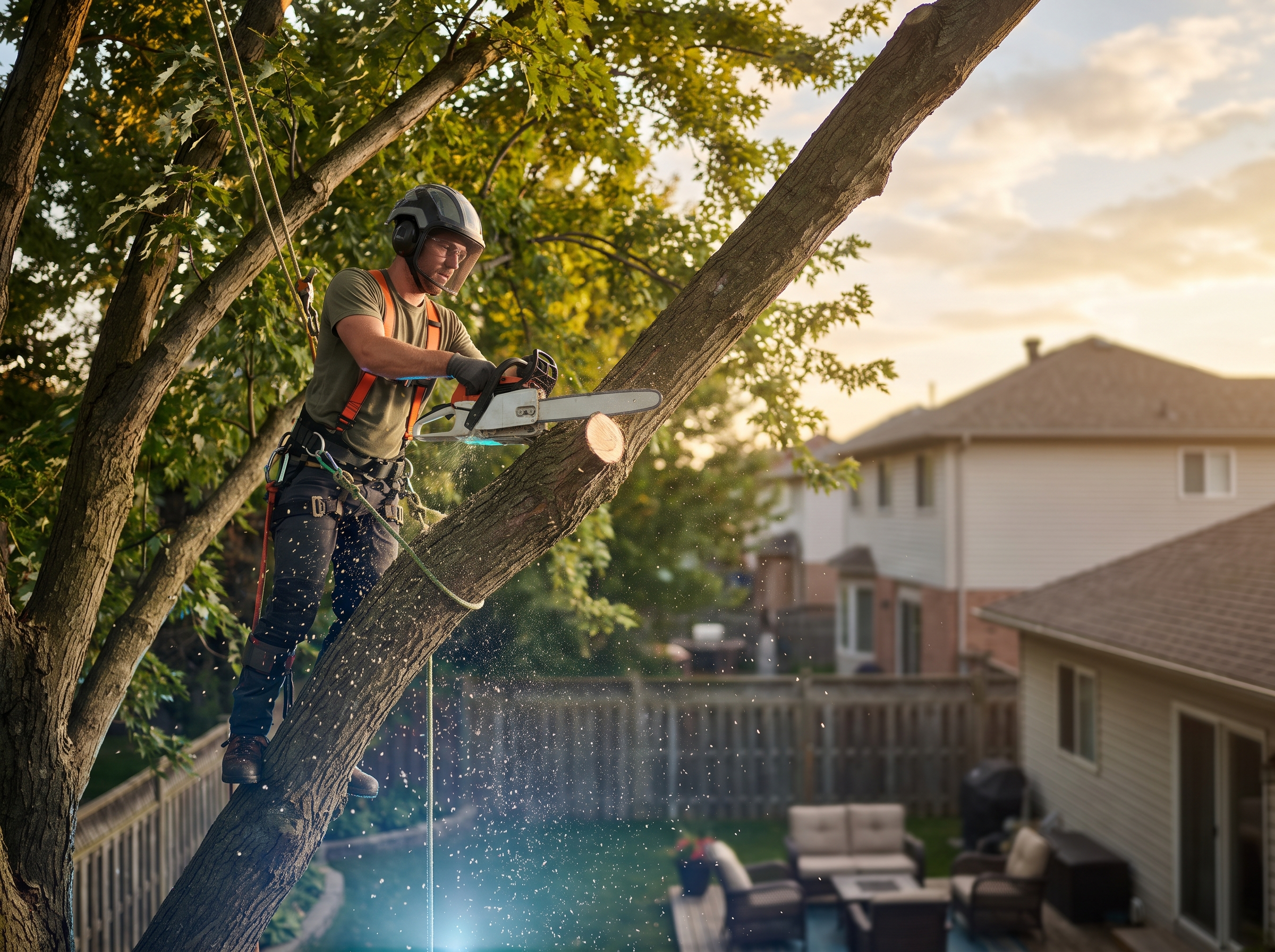
Homeowners buying a patio, retaining wall or chimney rebuild are spending real money on something they'll look at every day for twenty years. They don't trust adjectives. They trust photos of work you've actually done, ideally on a house that looks like theirs, in a town near them.
Most masonry and hardscaping websites bury those photos in a slideshow with no captions. Here's how to build a gallery that does some of the selling for you.
Why most contractor galleries don't work
The typical setup is one "Gallery" page with 80 thumbnails dumped in from a phone. It has a few problems:
- No context. A photo of a paver patio doesn't say what it cost to do right, what's under it or where it is. The homeowner fills in the blanks, usually with "that probably looks like everyone else's."
- Nothing for search engines. Google can't rank a wall of unlabeled images for "retaining wall contractor Plymouth MA." Text, page titles and structure do that work.
- Slow load. Eighty full-size phone photos can push a page into many megabytes. On a phone in a driveway with two bars, people leave before the first image shows up.
- No next step. The best photo on the site sits next to nothing: no phone number, no estimate button.
A gallery should work like a portfolio and a sales page at the same time.
Structure: a gallery hub plus individual project pages
Think of it in two layers.
The gallery hub is one page with every project as a card: a single strong "after" photo, a short title ("Bluestone patio and seat wall, Hingham"), and a filter by project type. Filters that make sense for most masonry and hardscape companies:
- Patios and walkways
- Retaining walls
- Steps and stoops
- Chimneys and fireplaces
- Stone veneer and brick repair
- Driveways and aprons
- Outdoor kitchens and fire pits
Project pages are one page per notable job. Not every job needs one. Pick the jobs that show range, high-value work, or the kind of project you want more of. A good project page has:
- A plain title with project type and town.
- Two or three short paragraphs: what the homeowner wanted, what the site problem was (grade, drainage, frost, an old wall failing), and how you solved it.
- A materials list: stone or paver type, base depth, drainage approach, joint sand or mortar.
- The photos, in order: before, during, after.
- A call to action and links to the matching service page and town page.
This structure also lets you link from your service-area pages to real work in that town, which is one of the most useful things you can put on a local page. We cover the town-page side in why trade businesses need local service pages.
Before and after: shoot it on purpose
Before/after pairs are the most persuasive content a hardscaper has, and most companies forget the "before" until the excavator is already running. Make it a crew habit.
- Same spot, same angle. Stand where you'll stand for the finished shot. Pick a reference point like a corner of the house or a tree so the pair lines up.
- Shoot the ugly parts. The heaved walkway, the leaning wall, the crumbling mortar joints. The worse the before, the better the after reads.
- Capture the base. In-progress photos of excavation depth, compacted gravel, drainage pipe and geogrid show the work nobody sees later. That's what separates you from the guy who sets pavers on two inches of stone dust.
- Finish clean. Blow off the patio, coil the hose, move the wheelbarrow. Shoot in soft light, early morning or overcast, so bluestone and brick show their color without harsh shadows.
- Shoot wide and close. One wide shot for context, then close-ups of joints, cuts around curves and wall caps.
Present pairs side by side or stacked, labeled "Before" and "After" in text, not baked into the image.
Captions and alt text that actually say something
Every photo should have a short caption a homeowner would find useful, and alt text that describes the image for screen readers and search engines.
| Weak | Better |
|---|---|
| "Patio 3" | "Thermal bluestone patio with granite border, set on compacted base with a perimeter drain" |
| "Wall pic" | "Segmental block retaining wall, about 4 feet high, with capstones and stepped returns" |
| "IMG_4471" | "Rebuilt brick chimney crown and repointed flue, before and after" |
Rename files before upload too. "bluestone-patio-hingham-ma.jpg" beats "IMG_4471.jpg." It's a small signal, but it costs nothing.
Don't stuff town names into every caption. Use the town in the page title, the intro and once or twice naturally in the text.
Speed: big galleries, small files
A photo-heavy site can still load fast. The rules:
- Resize before upload. Most gallery images don't need to be wider than 1600 to 2000 pixels. A 4000-pixel phone photo is wasted bandwidth.
- Use modern formats. WebP or AVIF files are usually much smaller than JPEGs at the same visual quality.
- Lazy-load below the fold. Only the first image or two should load right away. The rest load as the visitor scrolls.
- Set image dimensions. Giving each image a width and height stops the page from jumping around as it loads.
- Thumbnails on the hub. The gallery hub should load small thumbnails and link to the full project page, not load every full-size photo at once.
Speed affects both how many visitors stick around and how your pages perform in search. More detail in website speed and local rankings.
Schema and other technical details
Structured data (schema markup) is code that tells search engines what's on the page. For a contractor site:
- LocalBusiness (or a more specific type like HomeAndConstructionBusiness) on the homepage and contact page, with your name, phone, address or service area and hours.
- Service markup on service pages describing what you do and where.
- ImageObject details on project pages can describe the photos, including captions.
- BreadcrumbList so the hierarchy (Home > Projects > Retaining Walls > This Project) is clear.
Schema won't make a weak page rank, and Google doesn't promise any special display for gallery pages. It helps search engines understand a good page correctly. Validate it with Google's Rich Results Test or the Schema.org validator after it's live.
Also make sure each project page has a unique title tag and meta description, is linked from somewhere (not orphaned), and is included in your sitemap.
Turn the gallery into leads
A gallery that gets traffic and no calls is a hobby. On every project page:
- Put a click-to-call button and a short estimate form near the photos, not only in the footer.
- Add a line like "Planning a patio in the South Shore area? Send us a photo of your yard" with a photo upload field. People love doing this and it pre-qualifies the job.
- Pull in a review from that customer if they left one, with permission. See turning Google reviews into marketing.
- Reuse the same photos in your Google Business Profile updates and ads. Real project photos from your own crews nearly always beat stock images.
Keeping it updated without a marketing department
The reason galleries go stale is that updating them is a chore. Make it simple:
- Pick one person, maybe a foreman, to take before/during/after photos on every job.
- Drop them into one shared folder per job with the town and project type in the folder name.
- Once a month, choose the two or three best jobs and turn them into project pages.
Two good project pages a month adds up to two dozen by next season, each one a page that can show up when someone searches for that kind of work in that town.
How RGS helps
We build photo-first websites for masonry companies and hardscaping and tree crews, with project pages organized by type and town, fast image handling and lead capture on every page. If you want your best work doing more of the selling, see our web design service or call (617) 877-5608.