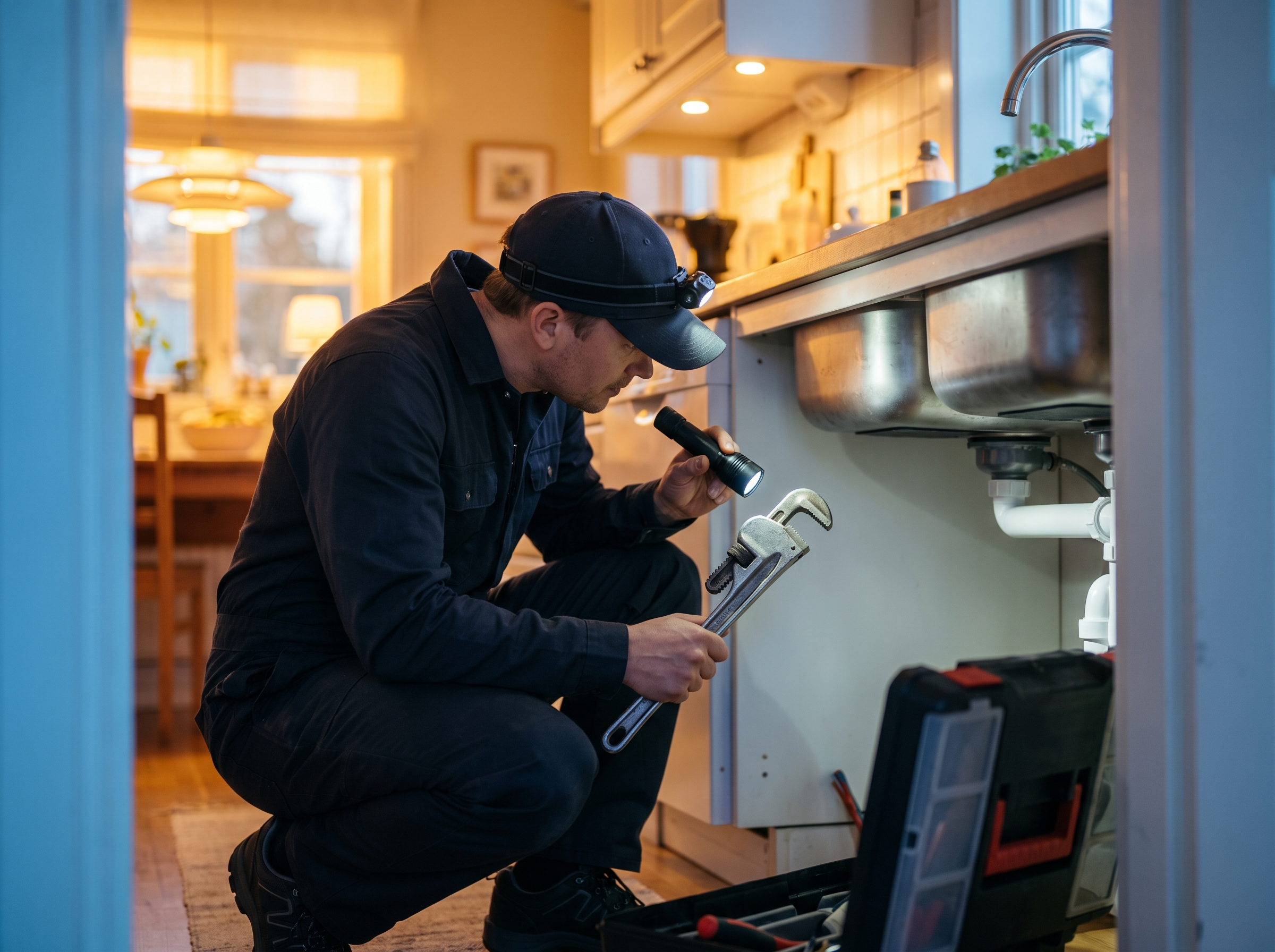
For many trade businesses, the Google Business Profile drives more phone calls than the website does, and your Performance insights will tell you whether that's true for yours. It's free, it sits at the top of the map results, and most contractors set it up once and never touch it again. This checklist walks through every section in order, with the settings that matter, the ones that don't, and the mistakes that get profiles suspended.
Step 1: Get the foundation right before anything else
Everything else on the profile depends on these basics. If any of them are wrong, more photos and posts won't fix it.
- One profile per business. Google's service area guidance says to create only one profile per business in a metro area. Duplicates for the same business can get your account suspended.
- Your real-world name. Use the name on your truck, invoices and signage. "Smith Plumbing" is fine. "Smith Plumbing | Emergency Plumber Boston 24/7" is not.
- Hide your address if customers don't come to you. Plumbers, electricians, painters and landscapers working at the customer's home are service-area businesses. Turn off "Show business address to customers" and list service areas instead.
- No virtual offices or PO boxes. As of 2026, Google's guidelines say rented mailing addresses and remote mailboxes aren't eligible. Use the place you actually run the business from, even if that's your house.
- A phone number you control. It has to connect to your business. If you use a call tracking number as the primary number, list your main line as an additional number so the listing stays consistent with the rest of the web.
- Website link. Point it to your homepage, or to the location page if you have more than one office.
Step 2: Choose categories carefully
The primary category carries the most weight of anything you choose. Google's rule of thumb is to pick categories that finish the sentence "This business IS a..." rather than "This business HAS a..." As of 2026 you can add one primary and up to nine additional categories, but more isn't better. Pick the few that describe your core work.
| Trade | Primary category | Additional categories to consider |
|---|---|---|
| Plumbing | Plumber | Drainage service, plus any water heater or sewer categories the picker offers |
| Electrical | Electrician | Electrical installation service |
| HVAC | HVAC contractor | Air conditioning contractor, Heating contractor, Furnace repair service |
| Landscaping | Landscaper | Lawn care service, Snow removal service |
| Painting | Painter | Use Services for interior, exterior and cabinet work |
Type each option into the category field and only use what the picker actually offers. If a service doesn't have its own category, it belongs in the Services section, not in your name or description.
Step 3: Set service areas you actually want work in
You can add up to 20 service areas as of 2026, and Google suggests staying within about two hours of driving time. A few practical notes:
- List the towns you want jobs in, not every town you've ever driven through.
- Service areas tell Google where you work. They don't make you rank in every listed town. Proximity to your verified location still plays a big role in the map pack.
- To show up in towns farther from your base, build real town pages on your website. We cover that in why trade businesses need local service pages.
Step 4: Fill in services, description, hours and attributes
Services. Add every service you want calls for, each with a short description. A plumber might list drain cleaning, water heater replacement, sump pumps, sewer line repair, gas piping and fixture installs. Write the description the way a homeowner would describe the problem.
Description. You get 750 characters. Say what you do, which areas you serve, and what makes you different (licensed master electrician, family-owned, same-day service if you really offer it). Don't paste URLs or a keyword list.
Hours. Only mark "Open 24 hours" if someone or something answers at 2 a.m. Set special hours for holidays so Google doesn't show you as closed or open by mistake.
Attributes. Add the ones that apply, such as veteran-owned or online estimates, if the options appear for your category.
Step 5: Upload real photos, and keep adding them
Homeowners scroll photos before they call. Upload:
- A clear logo and a cover photo that shows your work or your truck
- Finished jobs, ideally before-and-after pairs
- Your crew on site, in uniform if you have one
- Your vehicles with the business name visible
Skip stock photos entirely. A steady stream of new job photos does more than a big batch once a year. Geotagging photos is a popular tip with little evidence behind it, so spend that time taking better pictures instead.
Step 6: Post updates on a schedule
Posts come in a few types (updates, offers and events). They don't drive huge traffic on their own, but they show the profile is active and give people something current to read. A simple rhythm that works for trades:
- A job spotlight every week or two: one photo, what you did, which town.
- A seasonal offer or reminder each month (AC tune-ups in spring, fall cleanups in September).
- An event post when you're at a home show or community event.
Use the call or booking button instead of typing your phone number into the post text, since posts with phone numbers in the body are often rejected.
Step 7: Plan for Q&A being gone
Google has phased out the public Q&A section on Maps listings. As of 2026, it is being replaced by an AI "Ask" feature that answers customer questions using your profile information and reviews (coverage from PPC Land). That changes where your answers need to live:
- Put answers to common questions in your services descriptions and business description: towns served, emergency availability, financing, licensing.
- Reply to reviews with useful detail ("Thanks for having us replace your water heater in Plymouth").
- Keep a real FAQ section on your website, since that content supports the same questions.
Step 8: Build a review system, not a review push
Reviews affect both ranking and whether someone calls. The best system is boring and automatic: when a job is marked complete in your CRM, the customer gets a text with your direct review link that same day, and one reminder a few days later if they haven't left one.
Stay inside Google's rules as of 2026:
- No incentives. No discounts, gift cards or raffle entries in exchange for reviews. Google's fake engagement policy bans this, and penalties can include blocking new reviews and a public warning on your profile.
- No review gating. Don't send happy customers to Google and unhappy ones to a private form. Google prohibits selectively soliciting positive reviews.
- Reply to everything. Thank the good ones, and answer bad ones calmly with the facts.
For more on getting value from reviews once you have them, read turning Google reviews into marketing.
Step 9: Avoid the common suspension triggers
Suspensions usually come from a handful of predictable causes:
- Keywords or city names added to the business name
- A virtual office, coworking desk or mailbox address
- Two profiles for the same business
- Changing name, address, phone and categories all at once, which can trigger re-verification
- Offering anything in exchange for reviews
- A phone number or website that redirects to a different business or a lead-gen site
- A service area stretched far beyond where you really work
Keep a folder ready with your business license, a utility bill or lease in the business name, and a short video showing your vehicle, tools and signage. If Google asks you to re-verify by video, you'll have what you need.
Your monthly maintenance list
Once the profile is set up, it takes about 20 minutes a month:
- Upload 4 to 8 new job photos.
- Publish 2 to 4 posts.
- Reply to every new review.
- Check that hours, phone and services are still correct, since anyone can suggest edits to your listing.
- Look at Performance insights for calls and direction requests, and compare against what your phone system recorded.
If you're a plumber, our local SEO playbook for plumbers shows how the profile fits with service pages, citations and Local Services Ads.
How RGS helps
We set up and manage Google Business Profiles as part of our Digital Marketing service, including review request automation tied to your CRM so every finished job gets asked. If you'd rather keep it in-house, this checklist is everything we'd do. If you want it handled, contact us or call (617) 877-5608.